
LCC retired the student accounts – including email accounts – of our alumni and inactive students on Feb. 17, 2026. This change strengthens the college’s data security, allowing us to better protect your digital identity and the digital identity of all current students.
What do you mean by “account”? Are you deleting my data?
On Feb. 17, 2026, LCC ended inactive students’ access to LCC student Gmail and Google Drive storage. Your college username, password and sign-in capability will also be retired.
Your student academic history and any employee tax history will always be preserved.
Who is considered an inactive student?
Inactive students are those who have not, within the past three semesters, been admitted to LCC or taken a class at LCC.
If you have been admitted within the past three semesters, taken a class within the past three semesters, or are already registered for a class in an upcoming semester, your account is considered active and will not be impacted.
Why are you discontinuing inactive student accounts?
LCC is continually improving our data security. Removing unused accounts is the digital equivalent of removing unused entry points into a building, allowing us to better protect your digital identity and the digital identity of all current students.
We understand that many inactive students have come to rely on their LCC student email accounts for long periods of time – in some cases, for professional identity, account enrollment, multi-factor authentication, credit monitoring, password recovery or document storage. We know that losing access is disruptive, and we did not make this decision lightly.
Will I be able to access my messages or data after my LCC student email account is deleted?
No, once your email account is deleted, you will not be able to access any of its contents. We encourage you to save or relocate your old emails and data before your account is deleted.
We also recommend updating your login and recovery information with any websites or accounts where you have used your LCC Gmail.
How can I get a new email account?
You can get a new email account from many providers, like Gmail, Yahoo and Outlook.com.
Here are a few examples of free accounts.
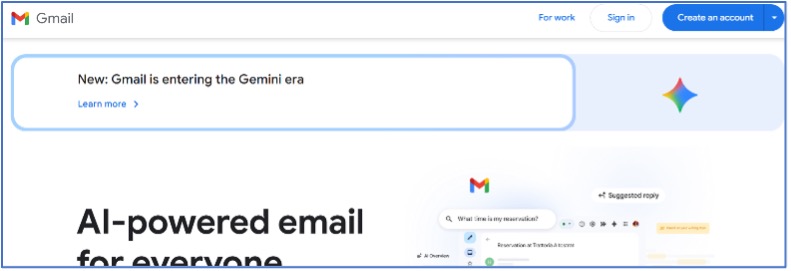
How to set up a new Gmail email account:
Go to the Google sign-up page (gmail.com), click "Create account," choose "For my personal use." Follow the on-screen steps to enter your name, birthday, gender, a unique username, a strong password, and verify your phone number, then agree to terms to complete your new Google/Gmail account.
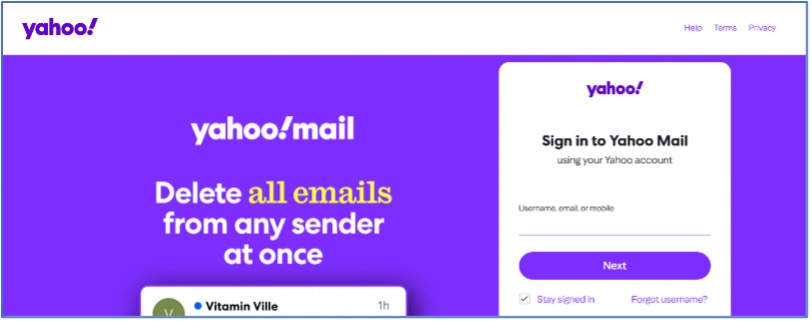
How to set up a new Yahoo email account:
To set up a Yahoo email, go to mail.yahoo.com or yahoo.com and click "Sign in," then "Create account." Fill in your details (name, desired email, password, date of birth), verify with a phone number or existing email, and agree to terms to finish. You'll need a strong password, and it's crucial to provide a mobile number for security verification during the process.
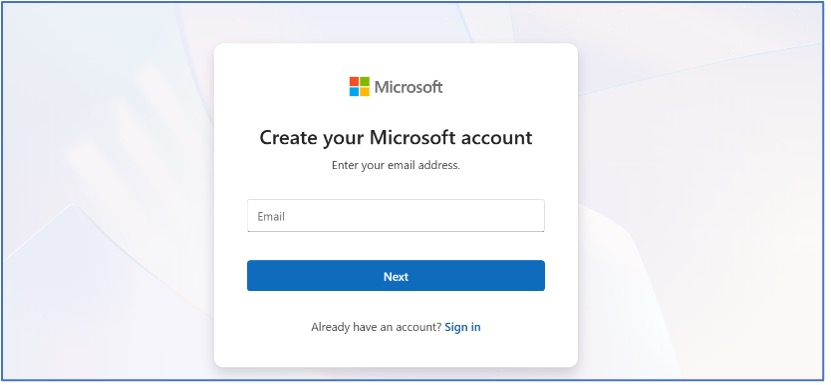
How to set up a new Outlook.com email account:
To set up an Outlook email, go to signup.live.com or outlook.com and select "Create free account" and follow the prompts.
If you need additional technical support, please contact our Help Desk at 517-483-5221 or lcc1@lcc.edu.
How can I transition my student email to another email provider?
You can manually or bulk transfer your emails and files out of your LCC student email account (provided by Google) to another account.
Here is a Google Support article that details all the steps, or you can watch this YouTube video.
In short, to relocate individual email messages, use the three-dots menu to download as an .eml file or print to PDF, or simply forward the email(s) to your new account.
To relocate individual files out of your Google Drive, you can manually download specific files.
- Go to drive.google.com.
- Select the files or folders you want to download.
- Right-click your selection and choose Download to compress them into a ZIP file.
To export larger amounts of emails or Google Drive files, use Google Takeout. Here’s how:
- Sign into your LCC student account.
- Select your profile.
- Select “Manage my Google Account.”
- Select “Data & Privacy.”
- Select “Download Your Data.”
As a word of caution, the Google Takeout process can take anywhere from a few minutes to several days, depending on the amount and type of data. Additionally, if you use Google Takeout
to bulk download your emails into the MBOX format, you will not be able to directly
import an MBOX file into Gmail or Outlook.com because it lacks native support. You
can instead use a bridge like Mozilla Thunderbird. This support video can help you do that.
Alternatively, to transition your emails, you can add your LCC student Gmail to a new Outlook.com account using IMAP (make sure IMAP is enabled in your Gmail settings). If you use two-factor authentication, generate an App Password from your Google Account and use that when setting it up in Outlook. Once everything syncs, go to Outlook File -> Open & Export -> Import/Export -> Export to a .pst file. Select your Gmail account, include subfolders and choose a location.
How can I get an official transcript?
Instructions for ordering an official transcript can be found on our Requesting Official Transcripts webpage.
How can I request replacement graduation items, like a diploma cover, tassel or cord?
Visit our Marketplace storefront and look for the Student Graduation option to request and pay for graduation replacement items.
How can I request a replacement honors or admissions letter?
Visit our Registrar Forms webpage for replacement request forms. These forms may require inactive students to create a Dynamic Form account.
How can I access my financial aid history?
To access a history of the financial aid that you received in previous years, login to StudentAid.gov using your FSA ID and password.
How do I make a payment on an inactive student account?
You will need to make your payment through LCC’s MarketPlace.
- Go to the Marketplace.
- Select Student Finance Store.
- Choose Inactive Student Account Payment.
- Complete the required payment information.
Please have the following information available:
- First and Last Name
- Date of Birth
- Current Address
- Phone Number
- Payment Amount
- Credit or Debit Card (Visa, Mastercard, Discover, American Express)
- Name of Payee and Phone Number
- Optional: Student User ID or Student Number
How do I access a 1098T form if I’m not a current student?
For detailed information about the 1098T form, visit Educational Tax Credit Information webpage.
LCC has partnered with Heartland ECSI to provide 1098T tax forms. Inactive students who are no longer enrolled and do not have access to Banner Self-Service can still access their form electronically. Visit the ECSI Website, select “Tax Documents, and follow the prompts to retrieve your 1098T Statement.
Under IRS guidelines, LCC excludes issuing a 1098T when a student’s qualified tuition and related expenses were fully covered by scholarships, grants or other financial assistance during the calendar year. Therefore, ECSI may not have a 1098T available for you, even if you attended during that tax year.
LCC cannot provide tax advice. For questions about your individual tax situation, please consult a tax professional or refer to IRS resources.
How can I sign up for a class at LCC after my student account has been deactivated?
Welcome back! You can reactivate your account with the college by contacting the Help Desk by calling 517-483-5221 or emailing lcc1@lcc.edu.
Who owns email accounts provided by LCC?
The LCC email system is college property. Students are granted access to LCC email solely to support educational activities while they are enrolled as LCC students. More specifically, college-owned computer systems, including email, are intended to facilitate coursework, student-to-instructor communication and student-to-student communication. Because LCC email accounts are not intended for long-term personal use, we do not recommend using your LCC account as your primary email account for personal business (or using it for password recovery options for non-LCC accounts).
How should email provided by LCC to students be used?
Use is subject to LCC’s Acceptable Use Policy, which users agree to prior to receiving access to email. This policy is updated from time to time, and users are responsible for complying with the current version. LCC-provided email accounts should only be used for activities that support students’ educational activities while they are enrolled as students at the college.
Where can I report identity theft or possible fraud?
Individuals who believe their identity has illegally been used to apply at LCC and receive financial aid should complete the Identity Theft & Fraud Claim form on the Registrar Forms webpage.
What if I am both an employee and a student, and I either stop taking classes at LCC or leave employment, but not both?
All employees who have student accounts (with associated student resources, such as Gmail and Google Drive) will retain those student accounts, whether they are active or inactive students. Once an employee who has an inactive student account separates from LCC, both accounts will be inactivated. If an employee separates and but remains an active student, however, the student account will remain.
If I am an LCC employee and also have a student account (with associated student resources, such as Gmail and Google Drive), will my student account be deactivated?
No, employees with an inactive or active student account will retain their employee and student accounts.

Contact Us
Information Security
Technology and Learning Center, Room 421J
Phone: 517-483-5264
Fax: 517-483-1758